This step-by-step guide demonstrates how to install Windows 7 Ultimate. The guide is similar for other versions of Windows 7 such as Home Premium.
The best way to install Windows 7 is to do a clean install. It is not difficult to perform a clean installation. Before you start the installation process I recommend that you check Windows 7 System Requirements list to ensure that your hardware is supported by Windows 7. If you don't have Windows 7 drivers for all your hardware, it is a good idea to download all the drivers from the hardware manufacturers website and save all the necessary drivers on a CD-R or a USB drive before you start the installation.
Windows 7 DVD is bootable. In order to boot from the DVD you need to set the boot sequence. Look for the boot sequence under your BIOS setup and make sure that the first boot device is set to CD-ROM/DVD-ROM.
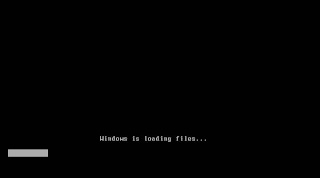
Step 1 - Place Windows 7 DVD in your dvd-rom drive and start your PC. Windows 7 will start to boot up and you will get the following progress bar.
The best way to install Windows 7 is to do a clean install. It is not difficult to perform a clean installation. Before you start the installation process I recommend that you check Windows 7 System Requirements list to ensure that your hardware is supported by Windows 7. If you don't have Windows 7 drivers for all your hardware, it is a good idea to download all the drivers from the hardware manufacturers website and save all the necessary drivers on a CD-R or a USB drive before you start the installation.
Windows 7 DVD is bootable. In order to boot from the DVD you need to set the boot sequence. Look for the boot sequence under your BIOS setup and make sure that the first boot device is set to CD-ROM/DVD-ROM.
Step 1 - Place Windows 7 DVD in your dvd-rom drive and start your PC. Windows 7 will start to boot up and you will get the following progress bar.
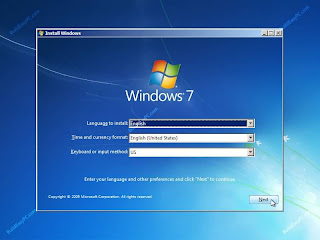
 Step 2 - The next screen allows you to setup your language, time and currency format, keyboard or input method. Choose your required settings and click next to continue.
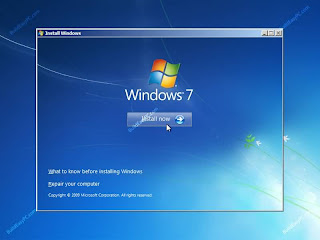
 Step 3 - The next screen allows you to install or repair Windows 7. Since we are doing a clean install we will click on "install now".
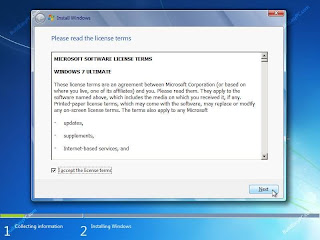
 Step 4 - Read the license terms and tick I accept license terms. Then click next to continue.
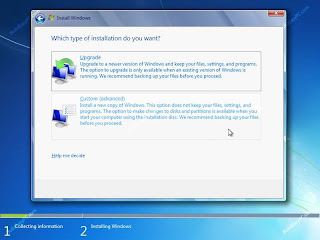
 Step 5 - You will now be presented with two options. Upgrade or Custom (Advanced). Since we are doing a clean install we will select Custom (Advanced).
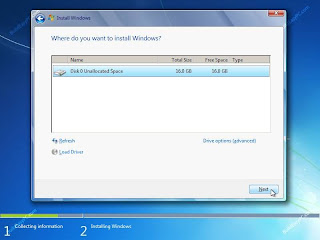
 Step 6 - Choose where you would like to install Windows 7. If you have one hard drive you will get a similar option to the image below. You can click next to continue. If you have more that one drive or partition then you need to select the appropriate drive and click next. If you need to format or partition a drive then click Drive options (advance) before clicking next.
Ne
Go To-(Part 2)

 Step 20 - Choose 'help protect my PC by turning on automatic updates now' and press next.
 Step 21 - Will this computer connect to the internet directly, or through a network? If you are connected to a router or LAN then choose: 'Yes, this computer will connect through a local area network or home network'. If you have dial up modem choose: 'No, this computer will connect directly to the internet'. Then click Next.
 Step 22 - Ready to activate Windows? Choose yes if you wish to active Windows over the internet now. Choose no if you want to activate Windows at a later stage.
 Step 23 - Add users that will sign on to this computer and click next.
 Step 24 - You will get a Thank you screen to confirm setup is complete. Click finish.
 Step 25. Log in, to your PC for the first time.
 Step 26 - You now need to check the device manager to confirm that all the drivers has been loaded or if there are any conflicts. From the start menu select Start -> Settings -> Control Panel. Click on the System icon and then from the System Properties window select the Hardware tab, then click on Device Manager.
 If there are any yellow exclamation mark "!" next to any of the listed device, it means that no drivers or incorrect drivers has been loaded for that device. In our case we have a Video Controller (VGA card) which has no drivers installed.
 You now get two options. The first option provides an automatic search for the required driver. The second option allows you to specify the location of the driver. If you don't know the location of the driver choose the automatic search which would find the required driver from the manufacturer supplied CD or Floppy disk. Windows would install the required driver and may ask you to restart the system for the changes to take affect. Use this procedure to install drivers for all the devices that contain an exclamation mark. Windows is completely setup when there are no more exclamation marks in the device manager.
 Step 12 - Choose your region and language.
 Step 13 - Type in your name and organization.
 Step 14. Enter your product key.
 Step 15 - Name the computer, and enter an Administrator password. Don't forget to write down your Administrator password.
 Step 16 - Enter the correct date, time and choose your time zone.
 Step 17 - For the network setting choose typical and press next.
 Step 18 - Choose workgroup or domain name. If you are not a member of a domain then leave the default settings and press next. Windows will restart again and adjust the display.
 Step 8 - This step is very important. Here we will create the partition where Windows will be installed. If you have a brand new unformatted drive you will get a screen similar to below. In our case the drive size is 8190MB. We can choose to install Windows in this drive without creating a partition, hence use the entire size of the drive. If you wish to do this you can just press enter and Windows will automatically partition and format the drive as one large drive.
 Windows will show the total size of the hard drive and ask you how much you want to allocate for the partition you are about to create. I will choose 6000MB. You will then get the screen below. Notice it shows C: Partition 1 followed by the size 6000 MB. This indicates the partition has been created. We still have an unpartitioned space of 2189MB. Next highlight the unpartitioned space by pressing down the arrow key. Then press C to create another partition. You will see the total space available for the new partition. Just choose all the space left over, in our case 2180MB.
 Step 9 - Now you will see both partition listed. Partition 1 (C: Drive) 6000MB and Partition 2 (E: Drive) 2180MB. You will also have 8MB of unpartitioned space. Don't worry about that. Just leave it how its is. Windows normally has some unpartitioned space. You might wonder what happened to D: drive. Windows has automatically allocated D: drive to CD/DVD-ROM.
 Step 10 - Choose format the partition using NTFS file system.This is the recommended file system. If the hard drive has been formatted before then you can choose quick NTFS format. We chose NTFS because it offers many security features, supports larger drive size, and bigger size files.
  Windows will now start formatting drive C: and start copying setup files as shown on the two images below :

 Step 2 - At this stage it will ask you to press F6 if you want to install a third party Raid or SCSI driver. If you are using a an IDE Hard Drive then you do not need to press F6. If you are using a SCSI or SATA Hard drive then you must press F6 otherwise Windows will not detect your Hard Drive during the installation. Please make sure you have the Raid drivers on a floppy disk. Normally the drivers are supplied on a CD which you can copy to a floppy disk ready to be installed. If you are not sure how to do this then please read your motherboard manuals for more information.
 Step 3 - Press S to Specify that you want to install additional device.
  Step 4 - You will be asked to insert the floppy disk with the Raid or SCSI drivers. Press enter after you have inserted the disk.


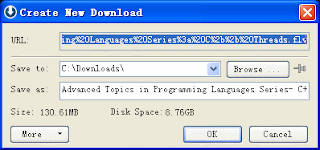
 (2) Click the button, Orbit Downloader will pop up a dialog to fetch the YouTube Video URL. It will need about 2 seconds.